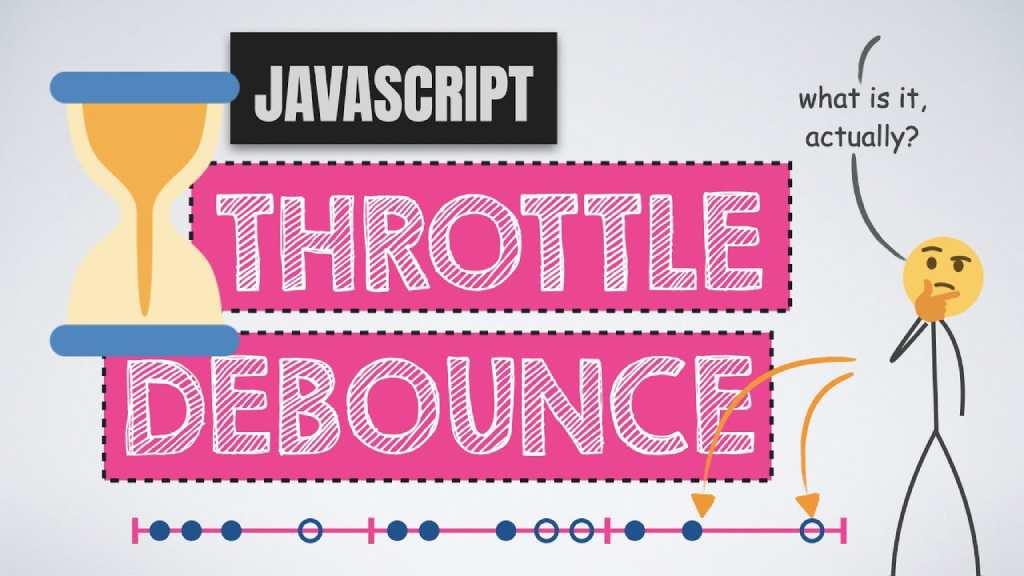
Debounce waits until calls stop for a set time, then runs once. Throttle runs at most once per time window while calls keep coming. Use debounce for search boxes, autosave and resize-end; use throttle for scroll, mouse move and progress tracking. Both stop a function from running hundreds of times a second.
Tested with: Chromium 156 and WebKit 27.2 (Safari's engine) via Playwright, and React 19.3 under StrictMode, October 2026. The timings below are from those runs.
Debounce vs Throttle at a Glance
| Debounce | Throttle | |
|---|---|---|
| Runs | Once, after calls stop for the wait time | At most once per wait time while calls continue |
| 10 calls, 50 ms apart, wait 300 ms | 1 run, with the last value, 300 ms after the last call | 3 runs: at 0, 300 and 600 ms, with values 1, 6 and 10 |
| Best for | Search input, autosave, form validation, resize end, double-click protection | Scroll, mousemove, drag, window resize while resizing, rate-limited APIs |
| Risk | Never runs if calls never stop | Skips intermediate values |
Debounce in JavaScript
// Run fn once calls stop for `wait` ms. With { leading: true },
// run on the first call of a burst instead of after it.
export function debounce(fn, wait, { leading = false } = {}) {
  let timer = null;
  let lastArgs;
  let lastThis;

  function debounced(...args) {
    lastArgs = args;
    lastThis = this;
    const callNow = leading && timer === null;
    clearTimeout(timer);
    timer = setTimeout(() => {
      timer = null;
      if (!leading) fn.apply(lastThis, lastArgs);
    }, wait);
    if (callNow) fn.apply(lastThis, lastArgs);
  }

  debounced.cancel = () => {
    clearTimeout(timer);
    timer = null;
  };

  // Run the pending call right away (e.g. before the page unloads)
  debounced.flush = () => {
    if (timer === null || leading) return;
    debounced.cancel();
    fn.apply(lastThis, lastArgs);
  };

  return debounced;
}import { debounce } from "./debounce.js";
const input = document.querySelector("#search");
const search = debounce((query) => {
console.log("Searching for", query); // runs once typing pauses for 300 ms
}, 300);
input.addEventListener("input", (event) => search(event.target.value));In our test, 10 calls made 50 ms apart produced one run, with the value from the 10th call, about 300 ms after it.
- The function keeps this and the latest arguments, so it works as an object method and as an event handler.
- Under the hood it's just clearTimeout plus setTimeout: each call cancels the previous timer. Our guide to clearing timeouts explains the timer side.
Leading debounce: run on the first call
// Run on the first click, ignore repeat clicks until 1 s of quiet
const submitOrder = debounce(() => placeOrder(), 1000, { leading: true });
button.addEventListener("click", submitOrder);
With { leading: true }, the first call of a burst runs immediately and the rest are ignored until calls stop. In our test, five quick calls ran only the first; a call after the quiet period ran again right away. This is the pattern for "don't submit the form twice".
cancel() and flush()
const saveDraft = debounce((text) => api.save(text), 2000);
editor.addEventListener("input", () => saveDraft(editor.value));

// Don't lose the last edit when the tab is hidden or closed
document.addEventListener("visibilitychange", () => {
  if (document.visibilityState === "hidden") saveDraft.flush();
});
cancel() drops the pending call (we checked it never ran); flush() runs it now. Saving on visibilitychange is more reliable than beforeunload, especially on mobile; see detecting tab changes.
Throttle in JavaScript
// Run fn at most once every `wait` ms: immediately on the first call,
// then once more at the end with the latest arguments.
export function throttle(fn, wait) {
  let last = 0;
  let timer = null;
  let lastArgs;
  let lastThis;

  function run() {
    last = Date.now();
    timer = null;
    fn.apply(lastThis, lastArgs);
  }

  function throttled(...args) {
    lastArgs = args;
    lastThis = this;
    const remaining = wait - (Date.now() - last);
    if (remaining <= 0) {
      clearTimeout(timer);
      run();
    } else if (timer === null) {
      timer = setTimeout(run, remaining);
    }
  }

  throttled.cancel = () => {
    clearTimeout(timer);
    timer = null;
    last = 0;
  };

  return throttled;
}import { throttle } from "./throttle.js";
const reportScroll = throttle(() => {
analytics.track("scroll", { y: window.scrollY });
}, 200);
window.addEventListener("scroll", reportScroll, { passive: true });An older version of this article throttled with a timestamp check and nothing else, so the final call was simply dropped. We called a 200 ms throttle every 20 ms for one second. Chromium made 49 calls and WebKit 33 (its timers ran slower under load), and both ran the function 6 times: at 0 ms and roughly every 200 ms after, with the last run using the final value. That trailing run matters: without it, the last scroll position or input would be lost.
{ passive: true } tells the browser your scroll listener won't call preventDefault(), so scrolling stays smooth.
requestAnimationFrame for Visual Updates
If the throttled function only changes what's on screen, sync it to the display instead of picking a number of milliseconds:
// For visual updates on scroll/resize: at most once per animation frame
export function rafThrottle(fn) {
  let frame = null;
  let lastArgs;
  return function (...args) {
    lastArgs = args;
    if (frame !== null) return;
    frame = requestAnimationFrame(() => {
      frame = null;
      fn(...lastArgs);
    });
  };
}const updateProgressBar = rafThrottle(() => {
const max = document.documentElement.scrollHeight - innerHeight;
bar.style.transform = `scaleX(${scrollY / max})`;
});
window.addEventListener("scroll", updateProgressBar, { passive: true });In our test, 212 calls in half a second ran the function 32 times in Chromium, once per frame (33 frames). Browsers pause animation frames in background tabs, so use a time-based throttle for analytics or network work instead.
Debouncing in React
Creating the debounced function inside the component body is the most common bug: every render (every keystroke) makes a new function with a new timer, so every call goes through:
// ❌ A new debounced function on every render: nothing is debounced
function Search() {
  const [query, setQuery] = useState("");
  const search = debounce((q) => fetchResults(q), 300);
  return <input value={query} onChange={(e) => { setQuery(e.target.value); search(e.target.value); }} />;
}
For search, debounce the value instead of the function. This hook updates only after the value stops changing:
import { useEffect, useState } from "react";

// Returns `value`, but only after it has stopped changing for `delay` ms
export function useDebouncedValue(value, delay = 300) {
  const [debounced, setDebounced] = useState(value);

  useEffect(() => {
    const id = setTimeout(() => setDebounced(value), delay);
    return () => clearTimeout(id); // a new keystroke cancels the old timer
  }, [value, delay]);

  return debounced;
}import { useEffect, useState } from "react";
import { useDebouncedValue } from "./useDebouncedValue.jsx";
export function SearchBox() {
const [query, setQuery] = useState("");
const debouncedQuery = useDebouncedValue(query.trim(), 300);
const [results, setResults] = useState([]);
useEffect(() => {
if (!debouncedQuery) {
setResults([]);
return;
}
const controller = new AbortController();
fetch(`/api/search?q=${encodeURIComponent(debouncedQuery)}`, { signal: controller.signal })
.then((res) => res.json())
.then(setResults)
.catch((err) => {
if (!controller.signal.aborted) console.error(err);
});
return () => controller.abort(); // drop answers to older queries
}, [debouncedQuery]);
return (
<div>
<input value={query} onChange={(e) => setQuery(e.target.value)} placeholder="Search…" />
<ul>
{results.map((item) => (
<li key={item.id}>{item.title}</li>
))}
</ul>
</div>
);
}What happened in our React test (StrictMode, fake API with 150 ms responses):
- Typing "r", "re", "rea", "reac", "react" 80 ms apart sent one request, for "react".
- Changing the query to "vue" aborted the older request through the effect cleanup, and the list showed only the "vue" results, so a slow old response can't overwrite a newer one.
- Typing and unmounting within 300 ms sent no request: the cleanup cleared the timer.
If you need a debounced callback (not a value), create it once with useMemo or useRef and call .cancel() in an effect cleanup. More on cleanups in why useEffect runs twice.
Using Lodash Instead
import debounce from "lodash/debounce";
import throttle from "lodash/throttle";

const save = debounce(saveDraft, 2000, { maxWait: 10000 }); // save at least every 10 s
const onScroll = throttle(track, 200, { trailing: false });
Lodash's versions add options like maxWait (guarantee a run during endless input) and trailing: false. If you already ship Lodash, use them; otherwise the 30-line versions above cover most apps without a dependency.
Which One Should I Use?
| Situation | Use | Typical wait |
|---|---|---|
| Search-as-you-type / autocomplete | Debounce (value) | 250–400 ms |
| Autosave a draft | Debounce + flush on hide | 1–2 s |
| Prevent double submit | Leading debounce | 1 s |
| Validate a field while typing | Debounce | 300–500 ms |
| Track scroll depth or send analytics | Throttle | 200–1000 ms |
| Sticky header, progress bar, parallax | requestAnimationFrame | 1 frame |
| Recalculate layout after resize | Debounce | 150–250 ms |
| Send cursor position over a WebSocket | Throttle | 50–100 ms |
For real search UIs built on these ideas, see our dynamic search bar and searchable dropdown guides; for live cursors and chat, see JavaScript WebSockets.
Common Mistakes
| Mistake | What happens | Fix |
|---|---|---|
| Creating the debounced function inside a React component | New timer every render; nothing is debounced | Debounce the value, or create it once (useMemo/useRef) |
| Throttle without a trailing call | The final position or value is lost | Run once more at the end with the latest arguments |
| No cleanup on unmount | A late call updates an unmounted component | Clear the timer / call cancel() in the cleanup |
| Debouncing a fetch but not cancelling it | An old slow response overwrites a new one | Abort the previous request (AbortController) |
| Debouncing scroll animations | Nothing moves until scrolling stops | Throttle with requestAnimationFrame |
FAQs
What is the difference between debounce and throttle?
Debounce runs the function once after the calls stop. Throttle runs it at regular intervals while the calls continue. A search box should wait until you stop typing (debounce); a scroll indicator should keep updating while you scroll (throttle).
How do I debounce in JavaScript without Lodash?
Keep a timer ID, clear it on every call and start a new setTimeout. The debounce() function above does this and adds a leading option, cancel() and flush().
What is a good debounce delay for search?
250 to 400 ms. Shorter sends more requests; longer feels laggy. 300 ms is a common default.
How do I debounce in React?
Debounce the value with a hook like useDebouncedValue, then fetch in an effect that depends on the debounced value. Don't create a debounced function in the render body.
Is requestAnimationFrame better than throttle?
For visual updates, yes: it runs once per frame, in sync with the screen. For network calls or analytics, use a time-based throttle, because animation frames stop in background tabs.
Related Articles
View all


About Muhaymin Bin Mehmood
Front-end Developer skilled in the MERN stack, experienced in web and mobile development. Proficient in React.js, Node.js, and Express.js, with a focus on client interactions, sales support, and high-performance applications.